Puzzle Creator
The Puzzle Creator is an in-editor tool used to create levels for Signals. The Puzzle Creator can be accessed in Assets/Creator/Puzzle Creator.scene
Features
- Keyboard shortcuts for everything
- Playing levels directly within the Puzzle Creator
- Browsing and Loading level files directly into the Puzzle Creator
- Saving the level files directly into a Unity assets folder
Keyboard Shortcuts
| Key | Action |
|---|---|
| LMB | Paint |
| RMB | Rotate |
| Shift | Next Component Page |
| D | Delete Child |
| Shift + D | Delete Everything |
| Q | Toggle Icy |
| W | Clear Selected Component |
| Ctrl + LMB | Link Portals |
| F | Force Ghost Component |
| U | Toggle Component Powered |
| Space | Moving Tile |
| Ctrl + R | Reset Grid |
| Tab | Toggle Play |
| Esc | Cancel Color Link |
| Ctrl + LMB | Change Color Link |
Usage
Painting Tiles
You can also change the tile variant by clicking in the top-left.
- LMB paints tiles
- Q changes tile variants
Deleting
- D deletes the topmost component
- Hold Shift + D and slide mouse to force delete components
Painting Components
Press the numbers to paint the specific component:
- W to clear selection
- Shift to change component pages
- Hold F to force draw over components
- Hold LMB to drag components around
- RMB to Rotate components
Linking Portals
- Ctrl + LMB Begin linking OR Clear the link
- Esc Stop linking
- LMB Select portal (when linking)
Powered Components
- Just press U
Button Linking
Gray buttons are not playable!
- Esc exits color linking mode
- Ctrl + LMB Begin color linking
- LMB selects additional components while in color linking mode
Moving Tiles
- Space sets the tile to moving. If in color linking mode, it will return the tile to normal
- Hold RMB while mouse dragging on the moving tile to set its position
Saving and Loading Puzzles
Savefile Paths
The save file path is decided by an inspector value on the PuzzleCreatorManager script, starting from the Resources folder.
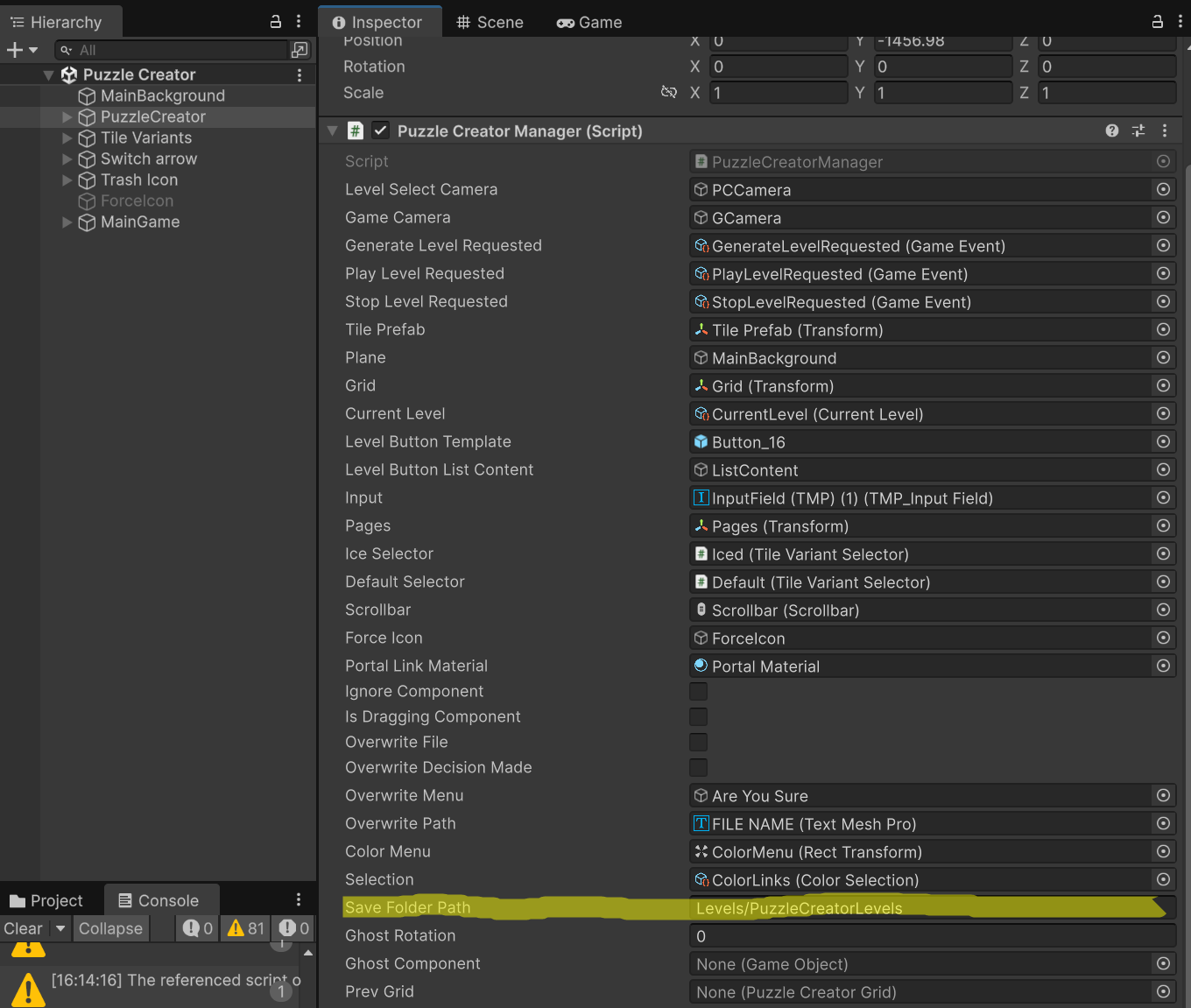
As shown above, all the levels being loaded and saved from the Puzzle Creator will go to Assets/Resources/Levels/PuzzleCreatorLevels. The image below is proof that this is the case.
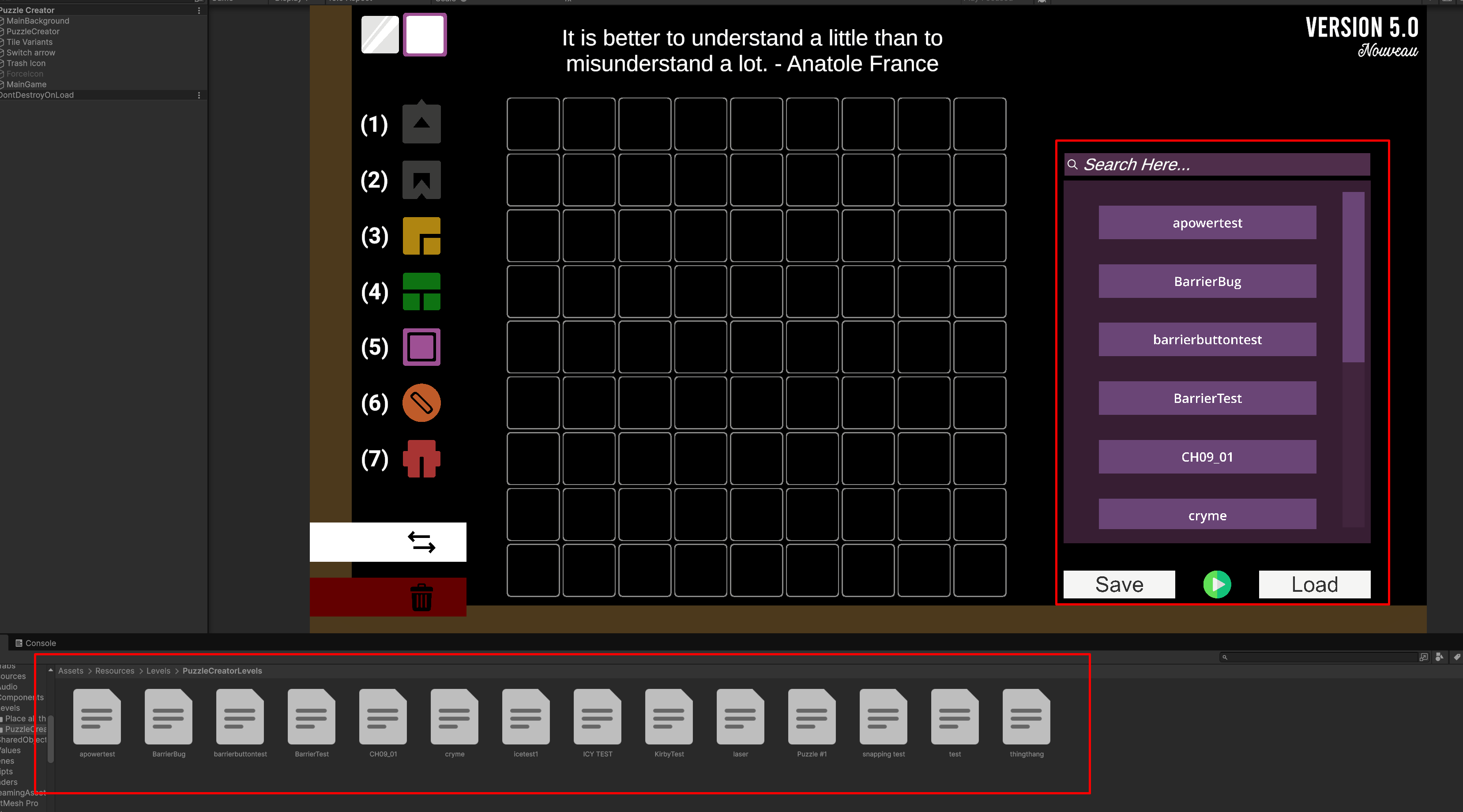
Loading
Loading a file is done by selecting the file in the explorer on the right. This will populate its name into the field at the top. Pressing load will load this filename into the puzzle creator.
Saving
To save, simply write the name you want to save the level file as in the box.
If the name already exists, a prompt will appear asking you to overwrite the file.